Your first speech
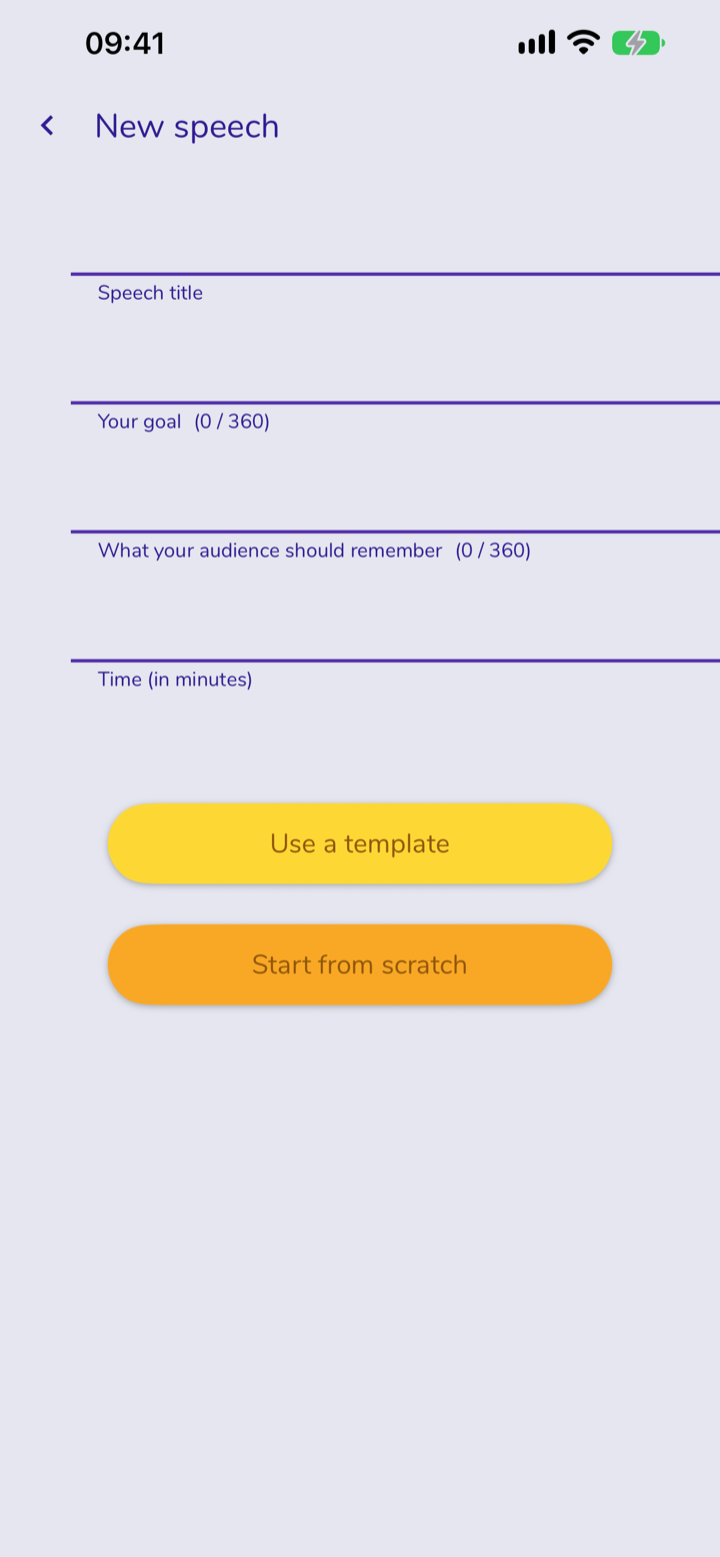
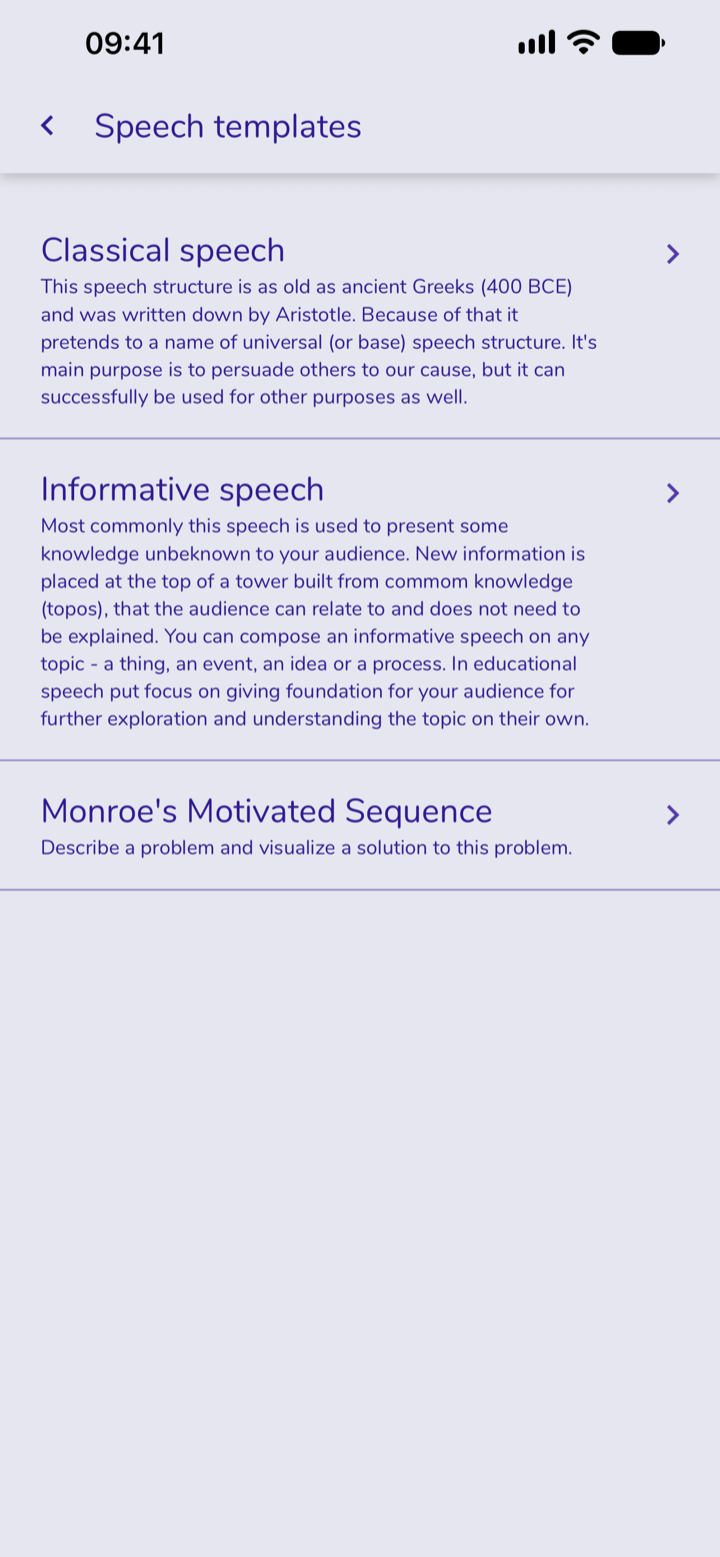
Three speech templates
- Classical – for argumentation and persuasion
- Informative (or educational) – for informing
- Monroe's Motivated Sequence – presenting a need and urging action
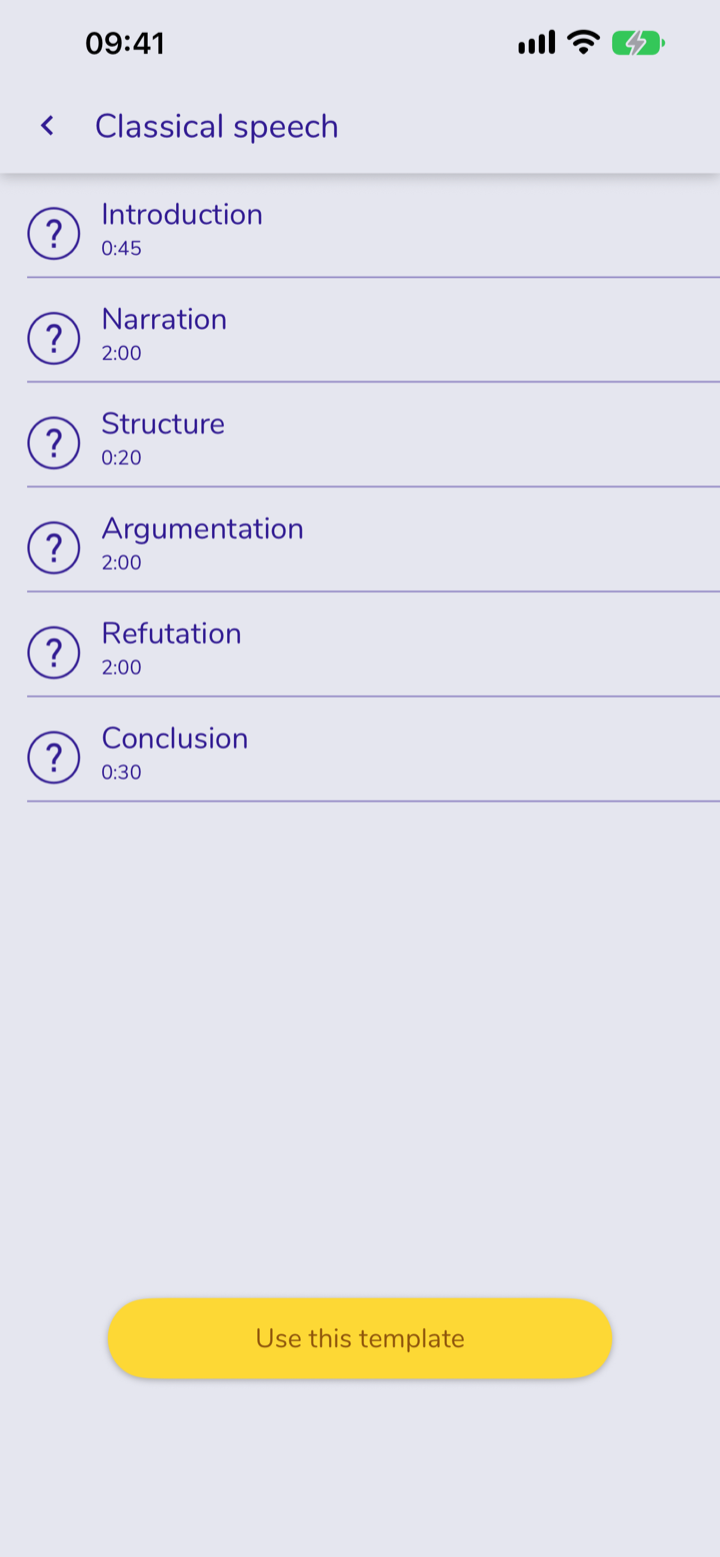
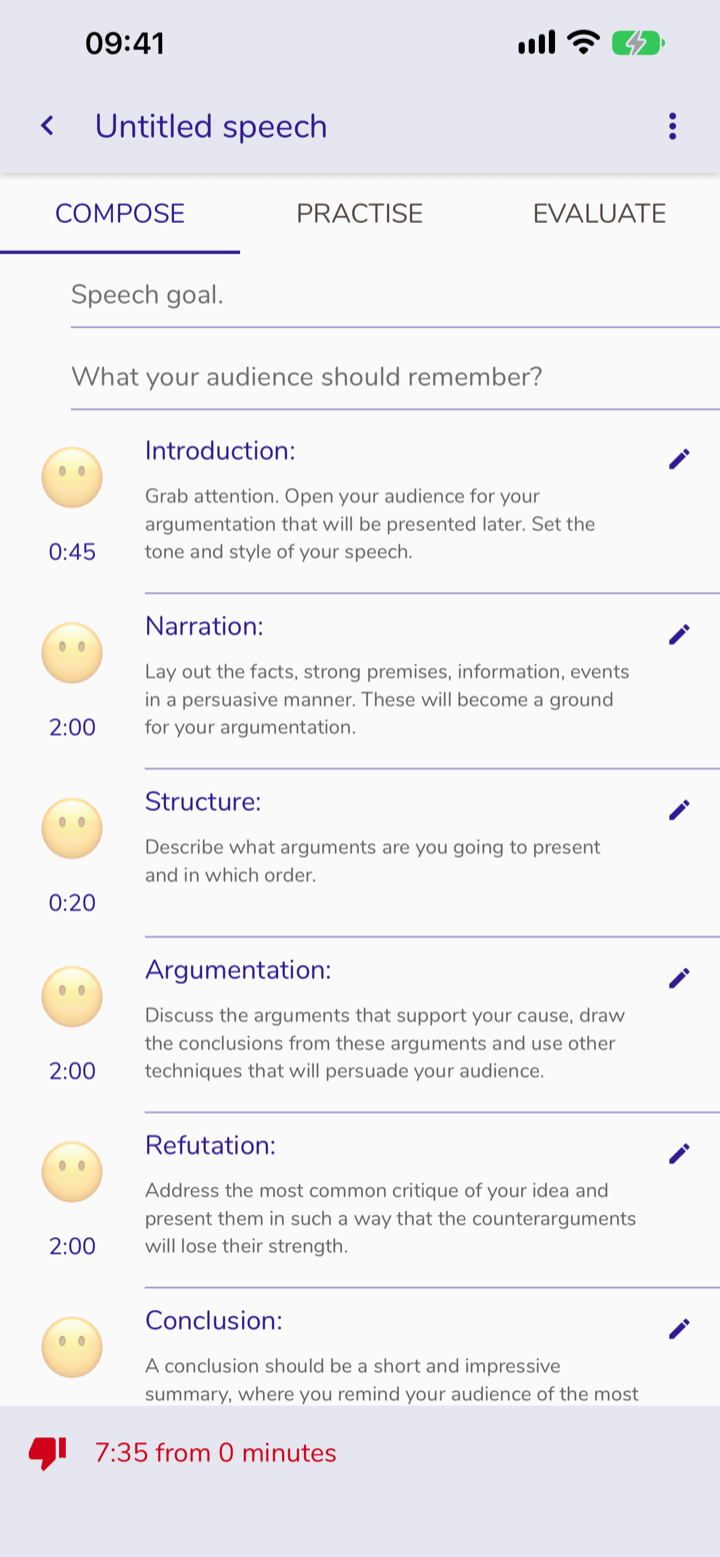
And what if you chose
Start from scratch?
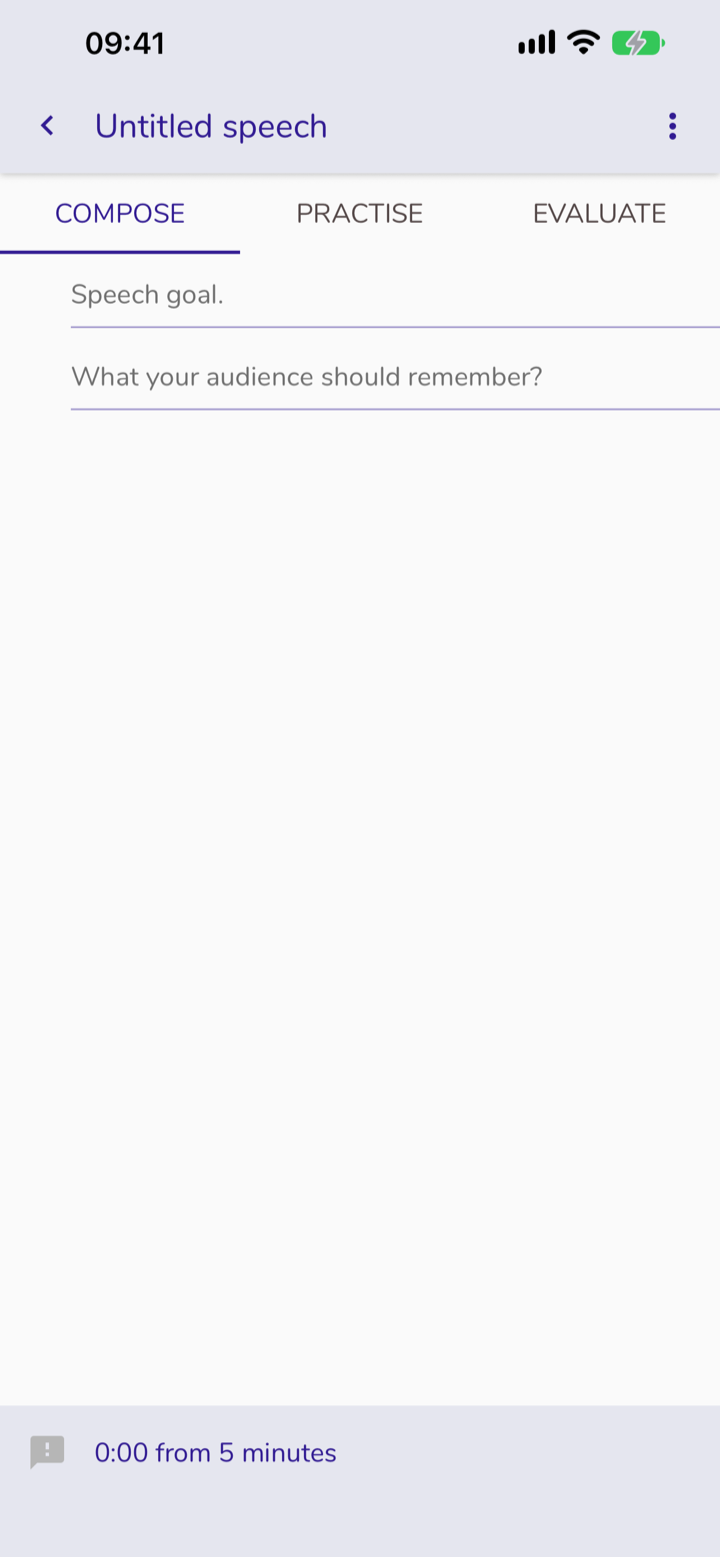
That's all!
(Although, to be honest, you will need a structure for your speech. More on that in a moment.)
Working with a speech
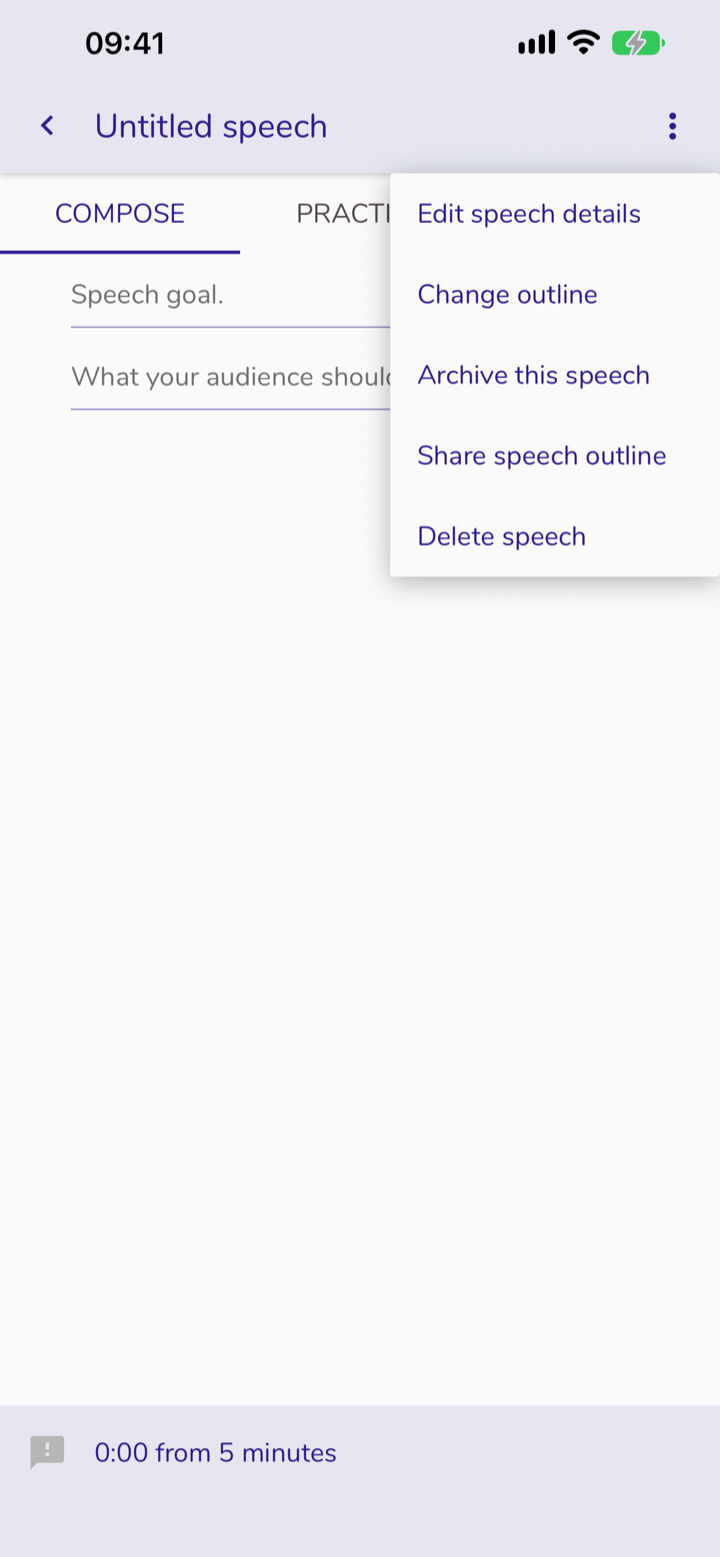
- Goal, time, message and title
- Changing the structure
- Save or send a printable outline
Speech structure
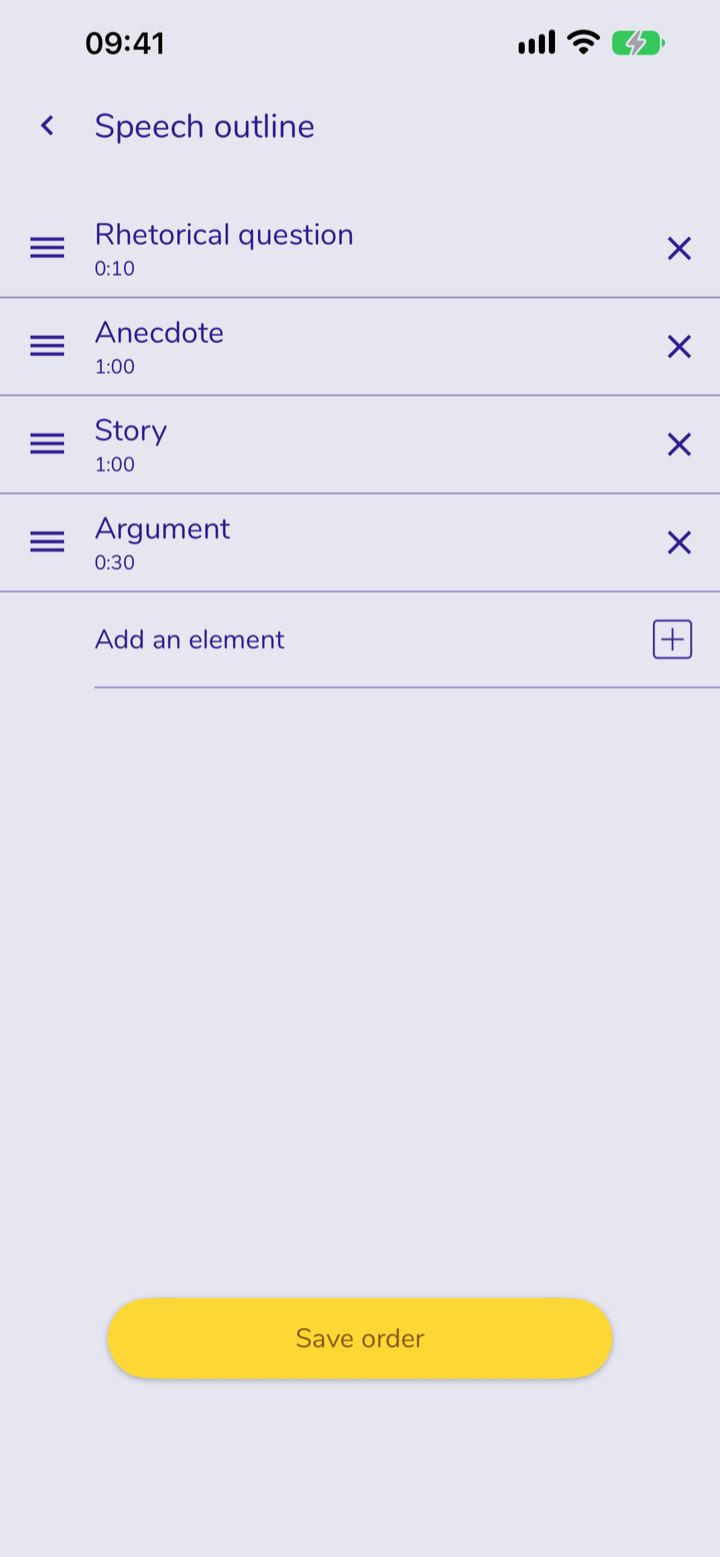
Deleting an element
You can delete existing elements of the speech structure when you no longer need them.
Dragging an element
You can drag each element and drop it wherever suits you.
Adding an element
Tapping this button takes you to Speech elements, the catalogue from which you can pick the ones that suit you best.
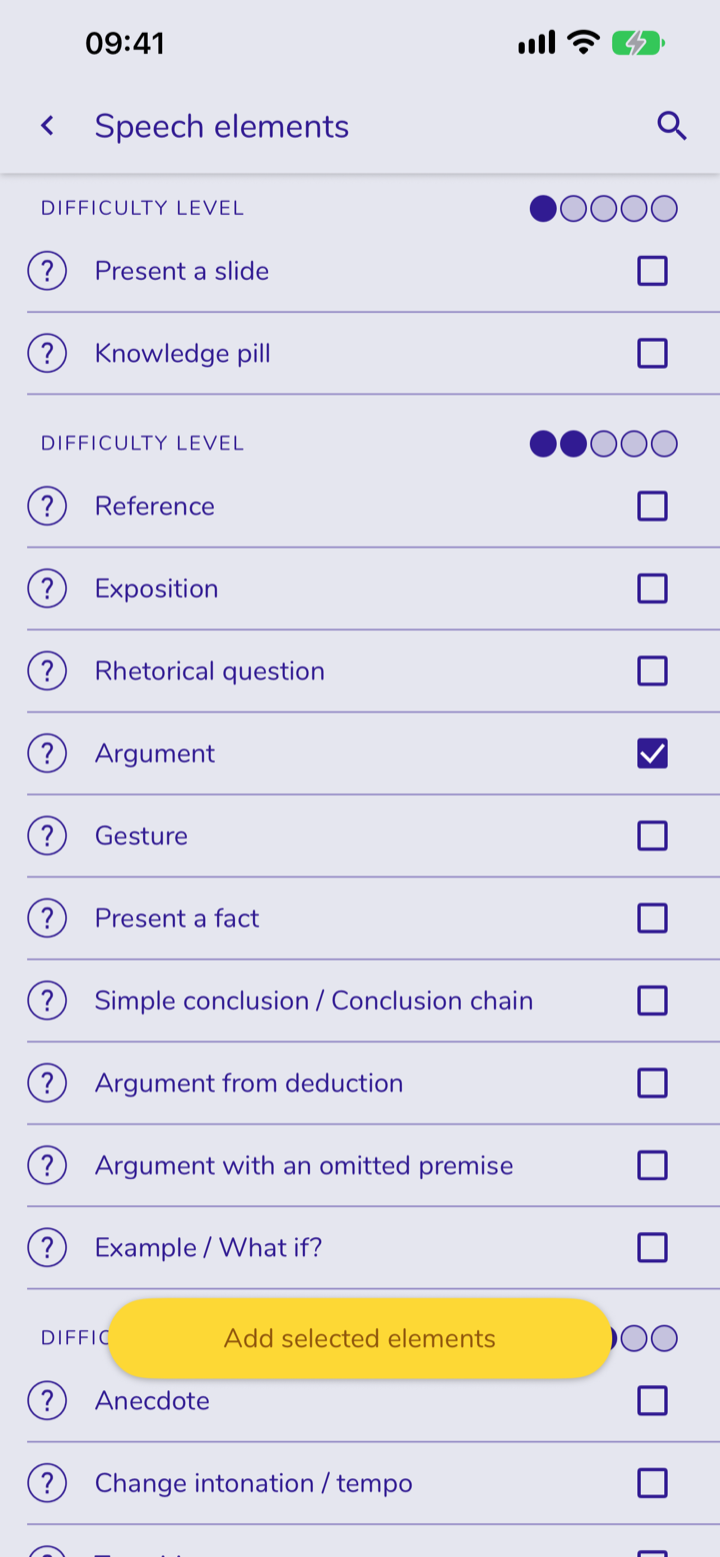
You can add many elements at once. Each time, you can pick one element of a given kind.
If you need three Arguments, tap "Add an element" three times.
Save order
Tap "Save order" or to return to editing the contents.
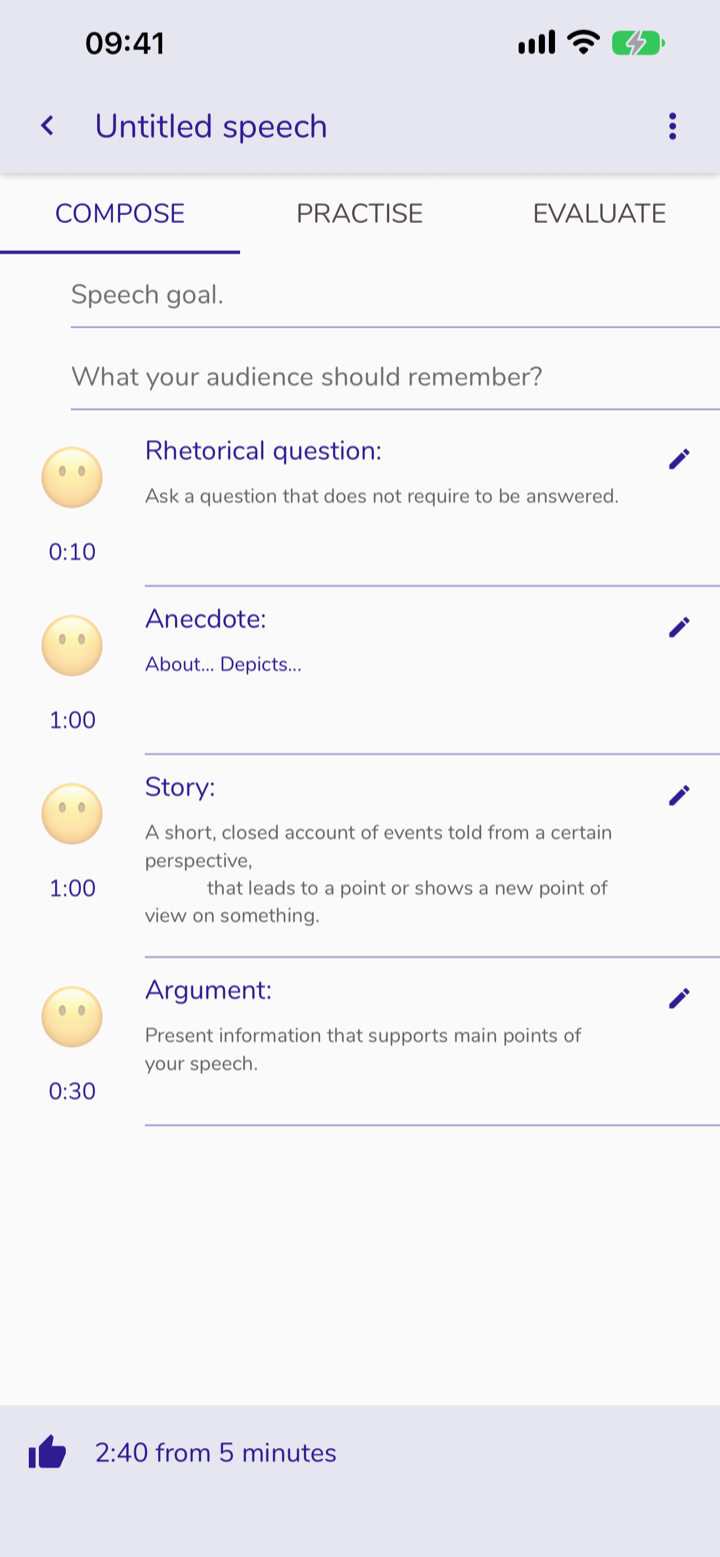
Editing the contents of the speech
Speech element
The elements are laid out one after another, in the structure you created.
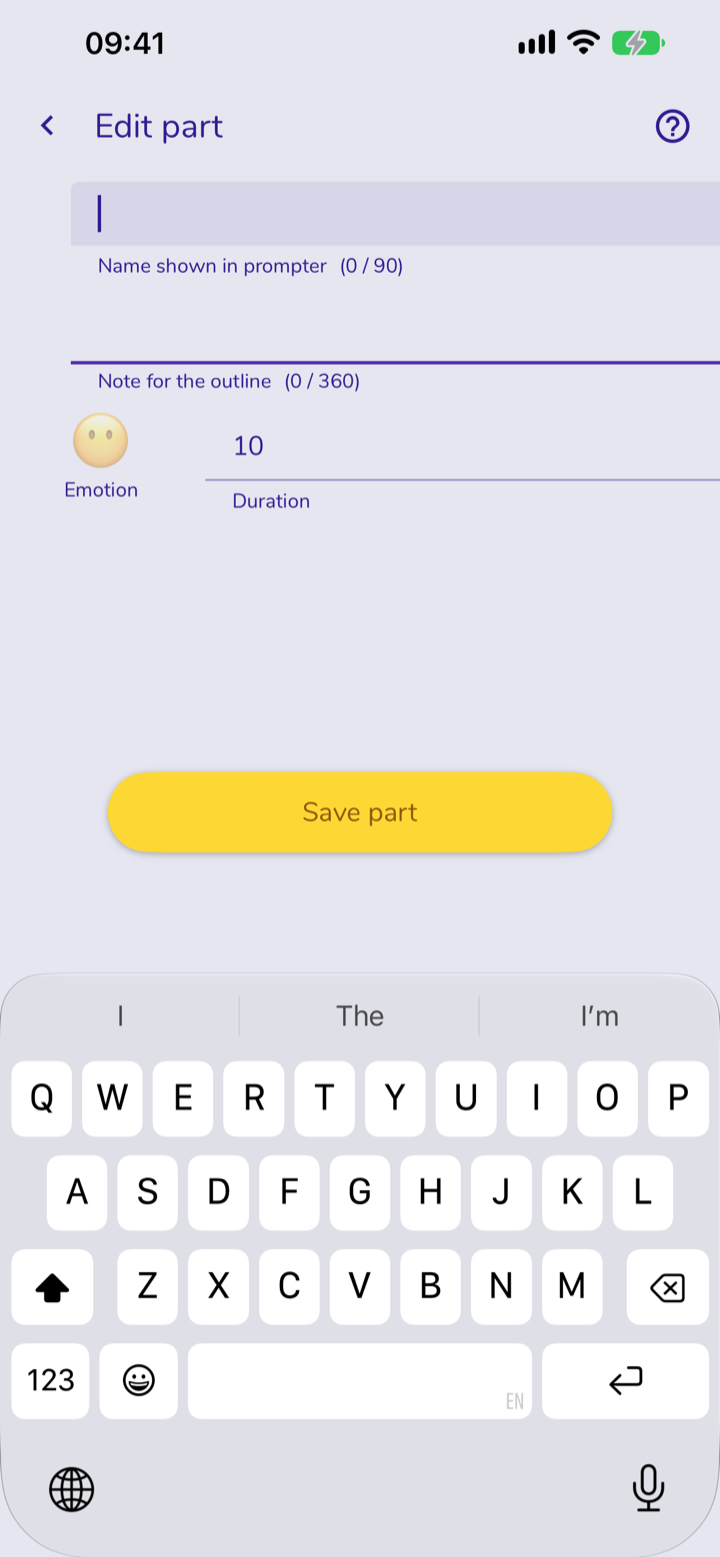
Time
Don't forget to give it in seconds.
The parts in the catalogue come with certain default values.
Save
Tap "Save part" or to return to editing the contents.
Time taken by all the parts
Here you can see how much time all the parts take.
It is sensible to have the structure filled to about 60% of the time.
Practising the speech
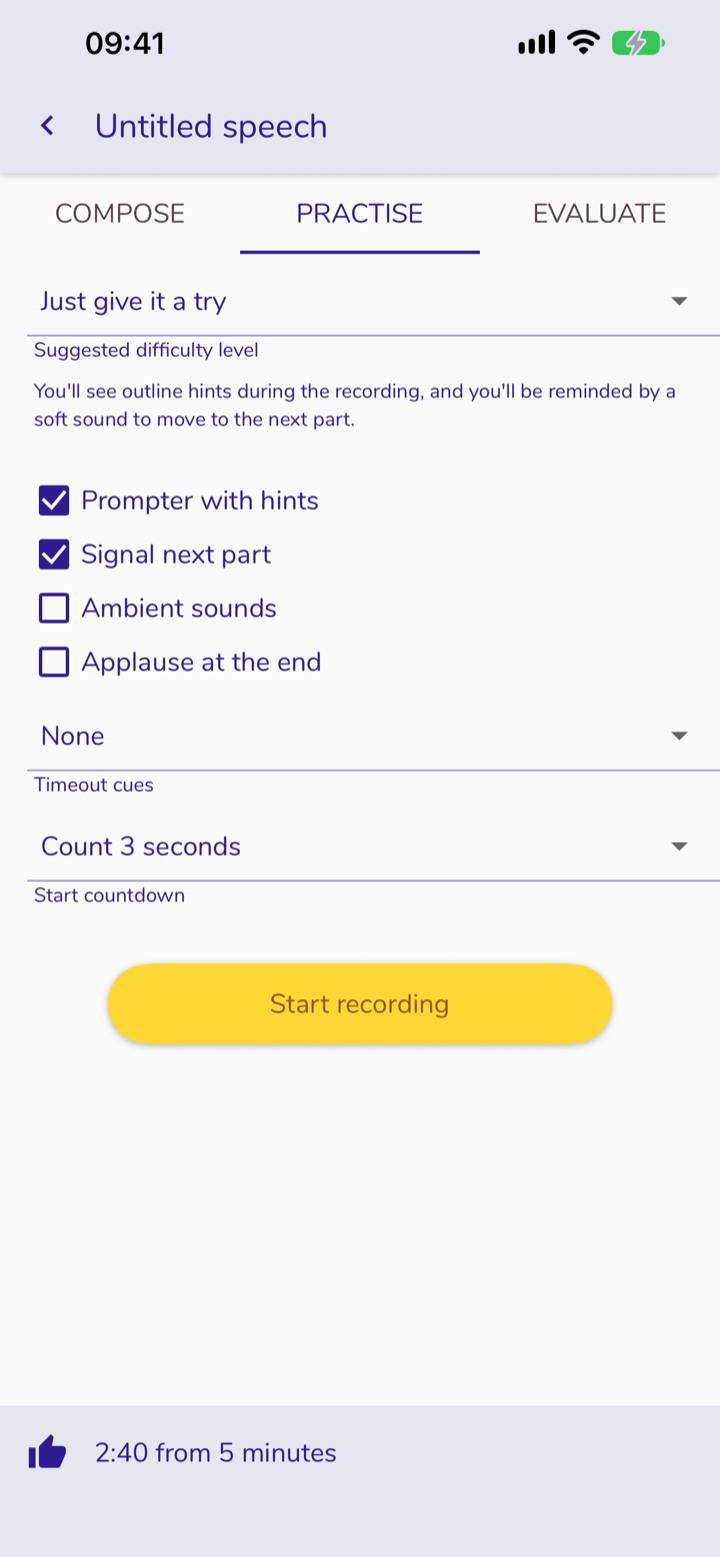
Practice difficulty level
The Public Speaker app has 4 built-in difficulty levels.
Following them is recommended, but not required. Each level sets options such as the prompter, timeout cues and so on, but you can switch each of these on and off yourself.
For now, make sure you are in airplane mode.
Start recording
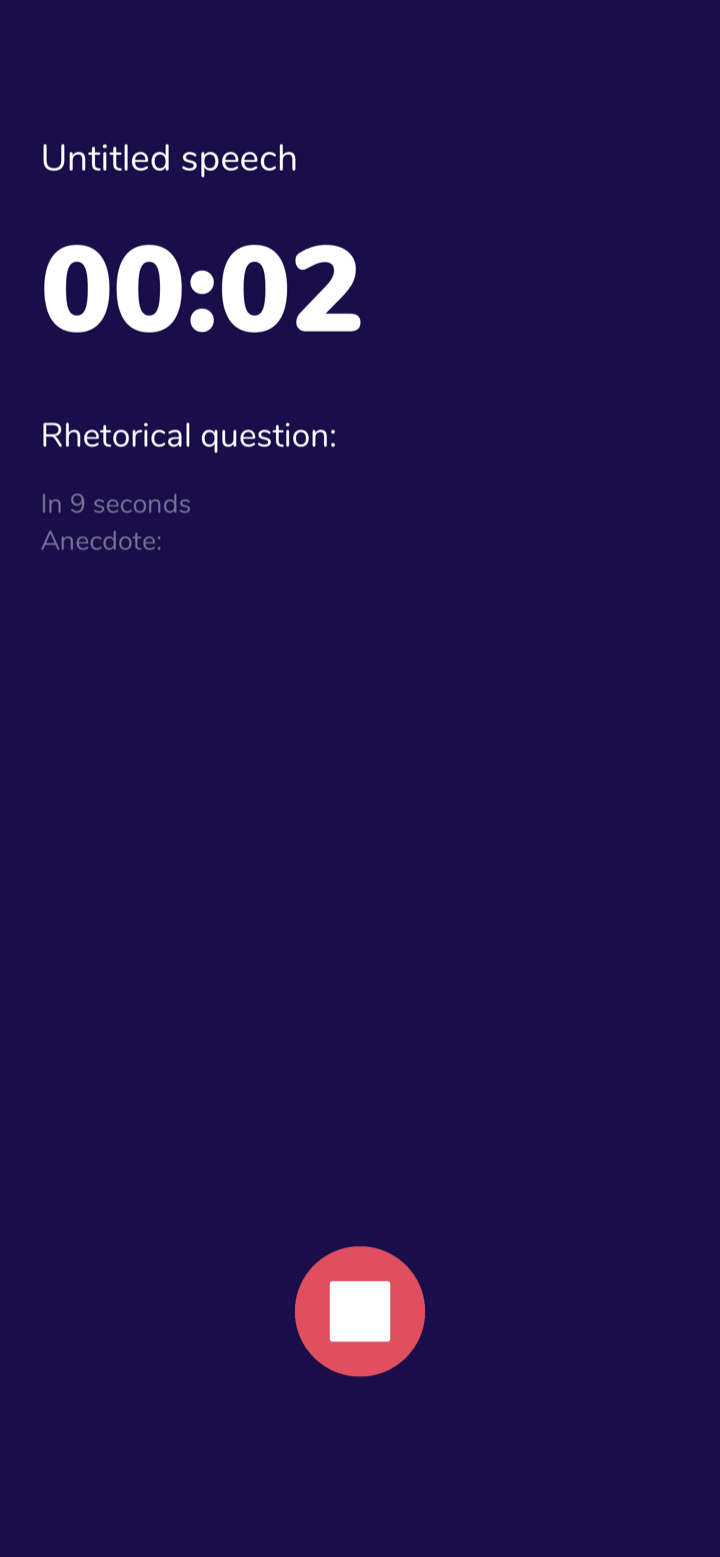
Recording in progress
Your recording lasts for as long as you speak, until you press the button at the bottom of the screen.
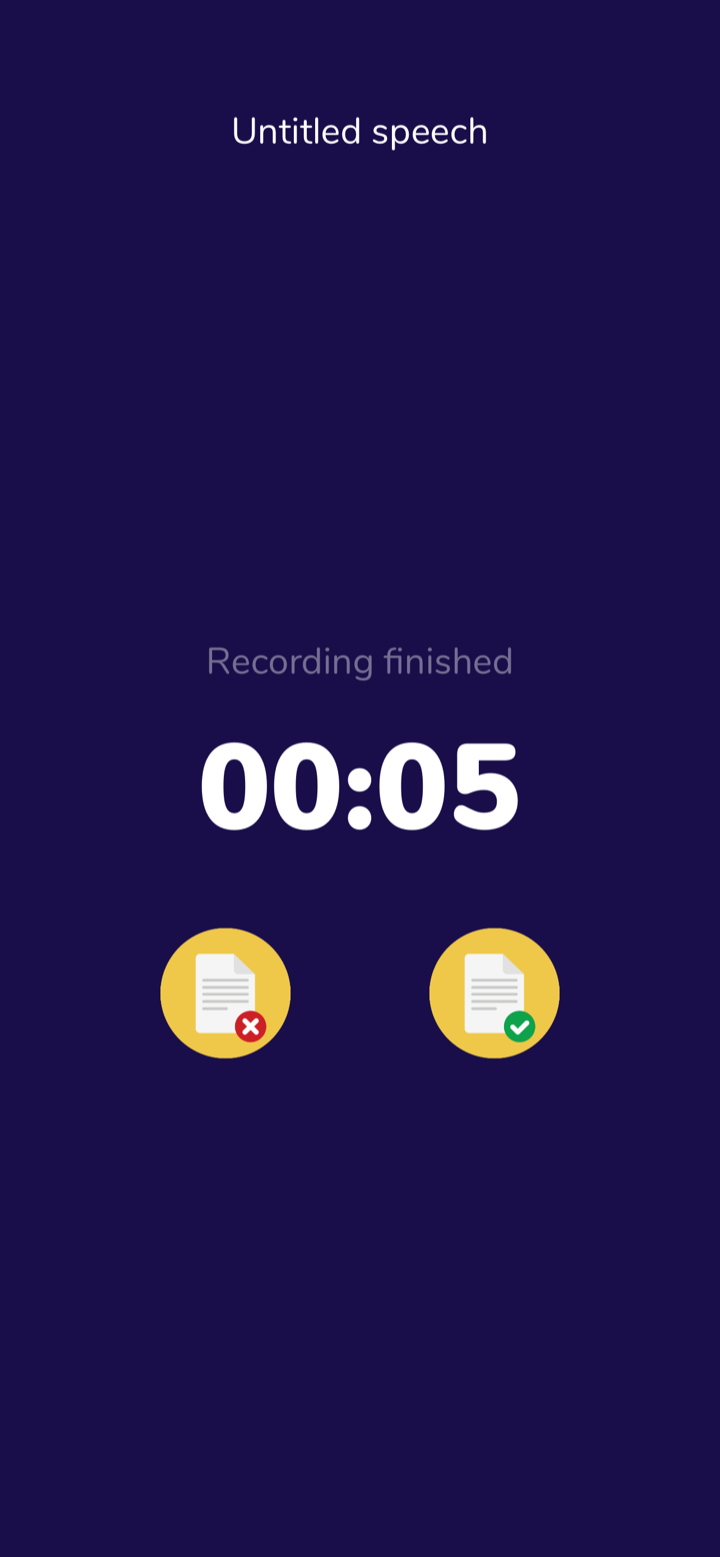
Save the recording here
You can also choose not to save it, but that option is only meant for when someone interrupts your practice.
Did you know
You can also practise with someone close to you? They will have extra buttons to mark the parts of your speech that were great and those worth improving.
Listening and evaluation
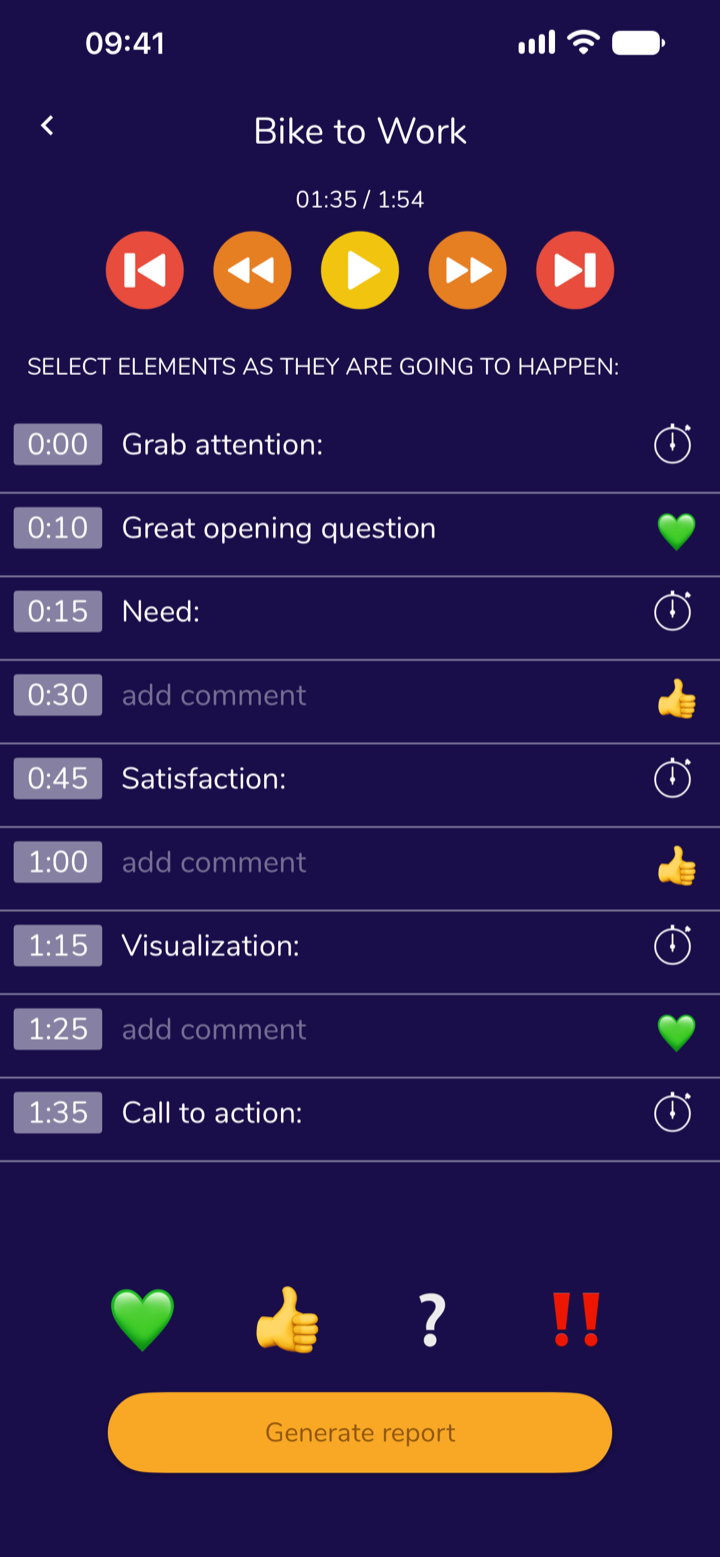
Listening
Many people dislike it. But listening even once will help you understand how else you can improve your speech.
Marking times
When the recording reaches a given point of your speech, mark its time by tapping the stopwatch icon.
Gestures and elements lasting 0 seconds can be marked too – here all that counts is whether they occurred in the speech.
If an element did not appear in the speech, do not mark it.
Times can also be marked out of order.
Jump to a time
Tap it to jump to that moment in the recording. This will help you discuss parts of your speech with someone close to you.
Evaluation tools
When the recording reaches a given point of your speech, mark its time by tapping the stopwatch icon.
Gestures and elements lasting 0 seconds can be marked too – here all that counts is whether they occurred in the speech.
A marked moment
You can add a text comment to a marked moment (marked while recording together or while listening). Just as with an ordinary element of the structure, you can jump to the moment at which the comment was added.
Generate report button.
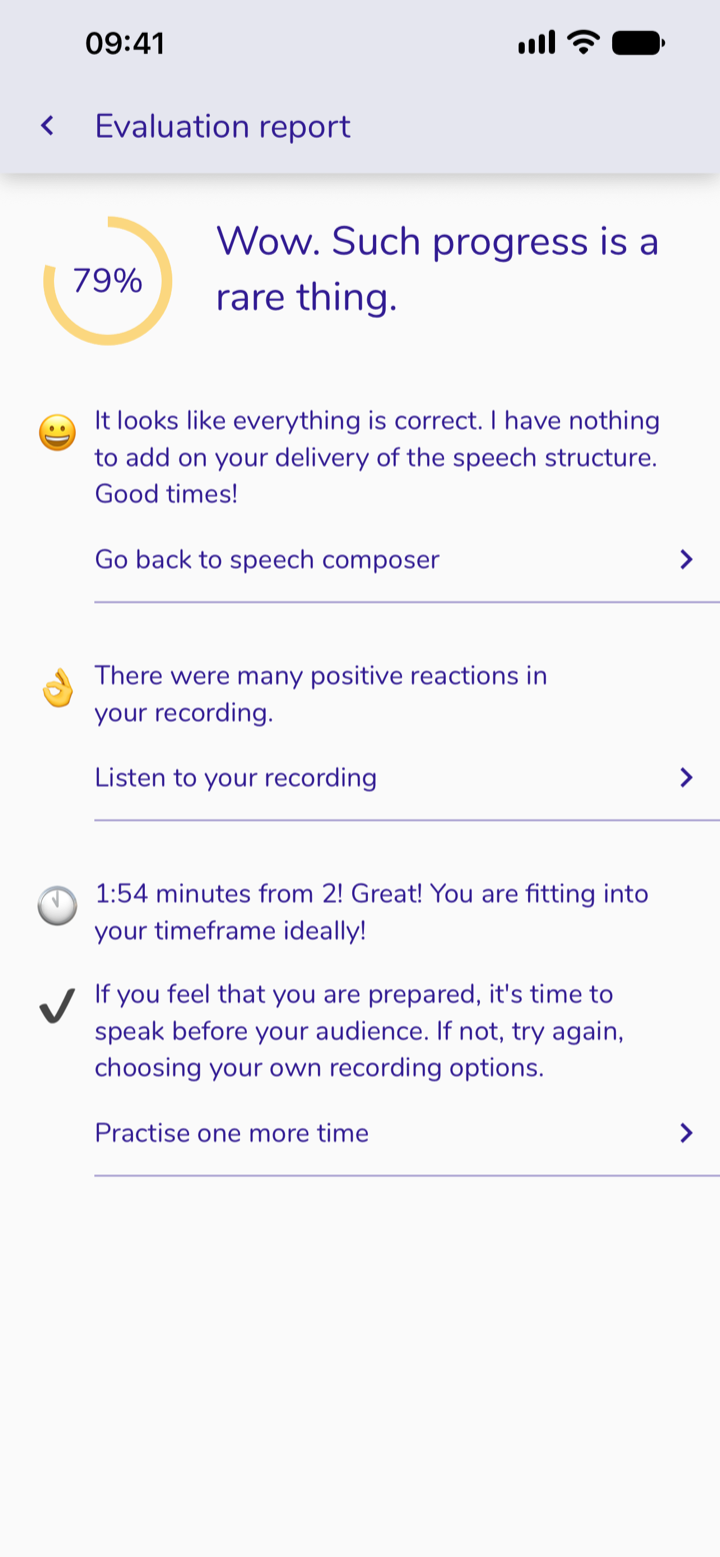
This is what your report might look like.
It might also look completely different. It all depends on the times and the evaluation. The one thing we made sure of is that your report is always positive and encouraging.
Together with your own reflections, it will help you improve your speech.
And now, time to get back to the next practice.